
Sessions and the current session
How the Tracker splits your sessions, what the current session shows, session history by day, month or year, merging sessions and the shareable recap.
A session, in the Tracker, is a continuous stretch of play, across all tables and all rooms. It splits itself: you have nothing to start or stop.
How a session is split
A session starts at your first hand and ends 20 minutes after your last hand, across all your heroes. A ten-minute break between two tournaments stays in the same session; coming back to play an hour later opens a new one.
You can also close it yourself with “End session”, from the current session page. Closing the Tracker does not end a session: the hands played while it was closed are caught up at the next launch.
During a session, the Lab is closed: “Analysis is unavailable during a session”. Most rooms forbid decision-support tools while you play. Analysis reopens as soon as the session ends.
The current session
From your first hand, a “Live” box appears at the top of the menu, with the duration and the number of hands, and the Tracker opens the Current session page.
- The Session tab lists your tables (in cash), your tournaments or your spins, with the tables still open, then the hands of the session.
- The Curve tab plots your result hand after hand.
- The Goals block shows where your goals stand with this session.
At the end, a “Session complete” window sums up the result.
Session history
The Sessions page, in the “Database” section, lists your finished sessions. The current session is not in it yet.
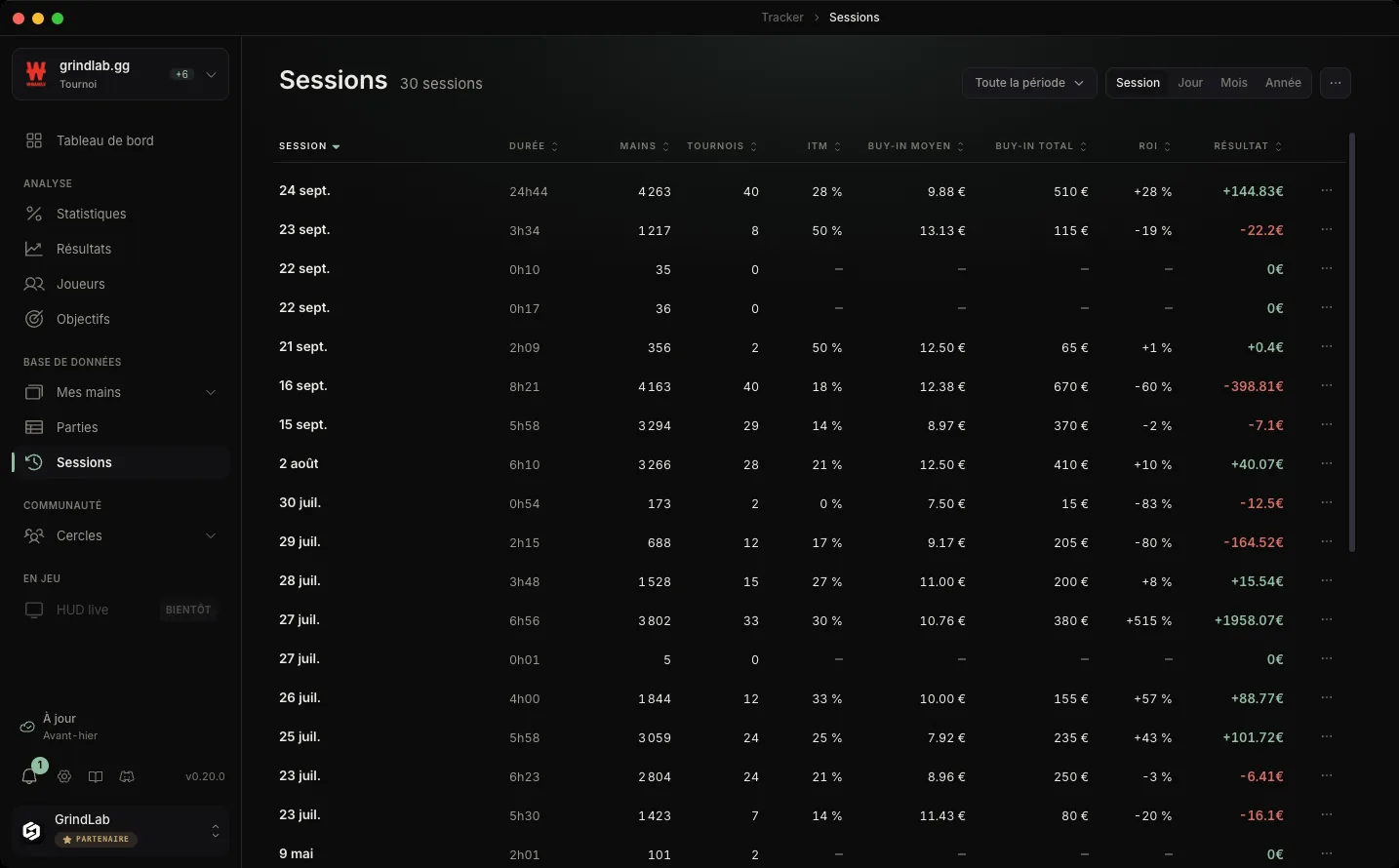
The columns change with the format: hands, duration, BB/100 and EV in cash; tournaments, ITM, average buy-in, total buy-ins and ROI in tournaments; spins, wins and max multiplier in spin. Click a header to sort the list.
“Group by” changes the grain: Session, Day, Month or Year. March 2026 on one line, with its result and its volume, then one click to drill down into its days: it is the quickest view for reading a trend.
“Hide €” hides the amounts, for a screenshot or a stream.
Merging or splitting sessions
Sometimes the automatic split cuts what you consider a single session (a long break in the middle of a tournament, for example). “Merge sessions”, in the page menu, lets you tick at least two adjacent sessions, then “Merge”. Merging only works at the Session grain. “Split session” undoes it.
The session recap
“Open recap” (or a click on the row) shows the Session recap:
- the volume, the ABI and the cost in tournaments, the net, the BB/100 and the EV BB/100
- the session curve
- the games of the session
- the goals in progress
- the number of hands to review
A session's menu also offers “See games”, “Review hands” and “Copy share link”: the recap then opens in a browser, for a coach or a study group, without an account. “Open shared recap” checks what the recipient sees.