
The HUD
The Tracker's HUD on your Winamax tables: the plate under each player, the quick card, written or dictated notes, marking hands, the edge tab and the settings.
The HUD shows your opponents' statistics right on your tables, while you play. Under each player, a plate gives three numbers. Hover it and a card gives more. You can also leave a note there, dictate it, and mark a hand to analyze later.
The HUD comes with the Tracker and is part of the Grinder plan. It works on Winamax today. On other rooms, your hands keep importing as usual, but no HUD is shown.
Turning the HUD on
In the Tracker's menu, open HUD (under “In game”) and turn on the switch at the top of the page. Three conditions:
- Your Winamax hand history folder is connected. The HUD recognizes players from the hand histories Winamax writes on your computer. With no folder, the page shows “Connect your Winamax folder to see the HUD”. See Import and sync.
- On macOS, the Tracker has the “Screen Recording” permission (System Settings › Privacy & Security). That is macOS's name for reading the position and title of your tables: no image is taken. On Windows, there is nothing to allow.
- Your tables are detached. Winamax's combined view has no HUD: keep one window per table.
From then on, the HUD shows up by itself at every table you open.
The plate
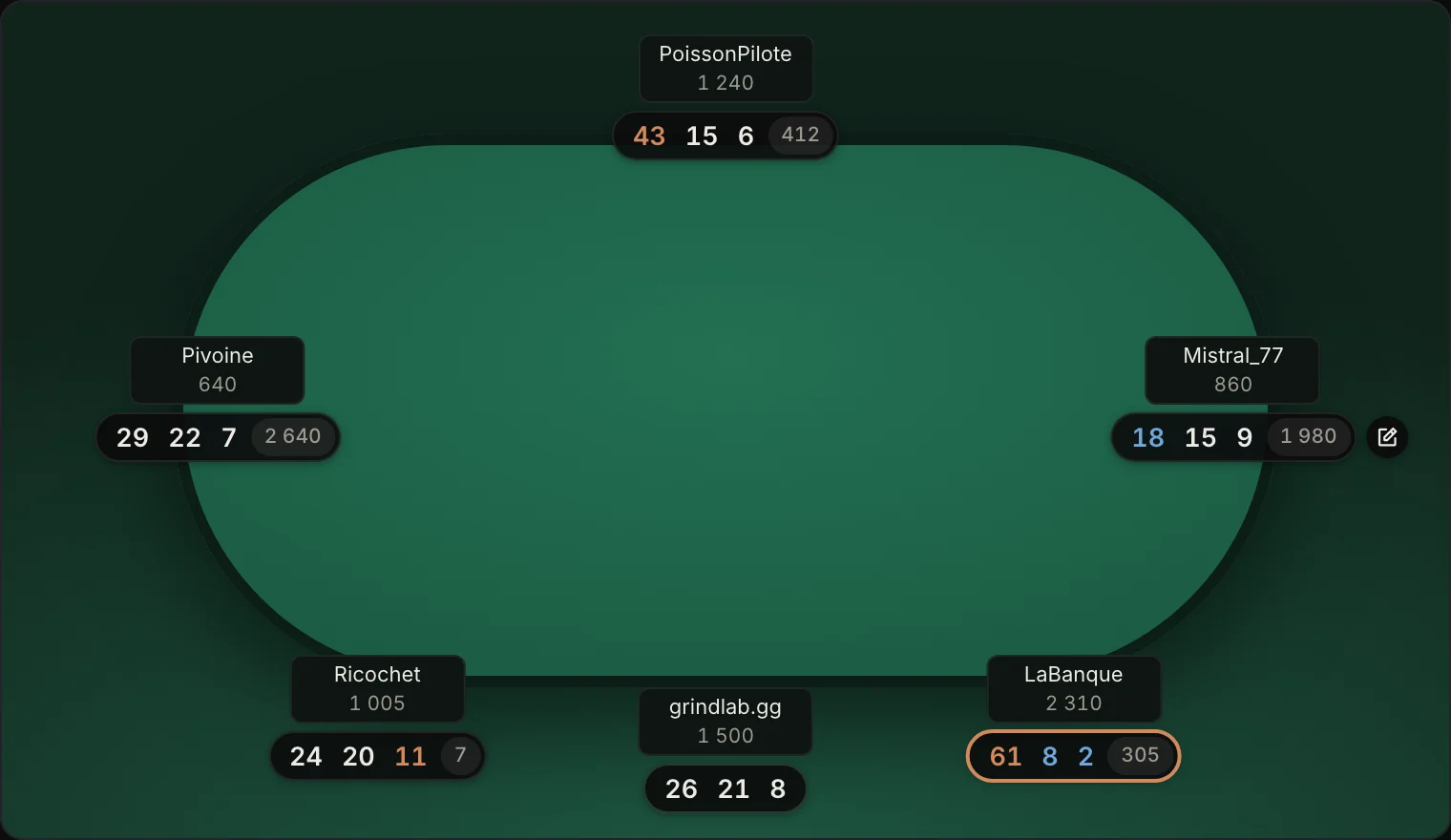
Under each opponent, the plate shows three numbers, followed by the number of hands you have played with them. By default:
- in cash: VPIP, PFR and 3-bet;
- in tournaments: VPIP, PFR and steal;
- in Spins: VPIP, open shove and call vs a shove.
The colours read at a glance: orange above the high threshold, blue below the low one, grey when the number rests on fewer than 10 opportunities, too few to mean anything.
Two signs can be added:
- a pencil in a circle, to the right of the plate: you have a note on this player. Click it to read the note;
- a coloured rim around the plate: the profile you gave them (calling station, regular…). On the HUD page, “Player profile” can turn it into a dot in front of the numbers instead.
Your own plate, outlined in green, sits next to your stack. “Hide my stats”, in the edge tab, hides it on all your tables.
Logo or plate
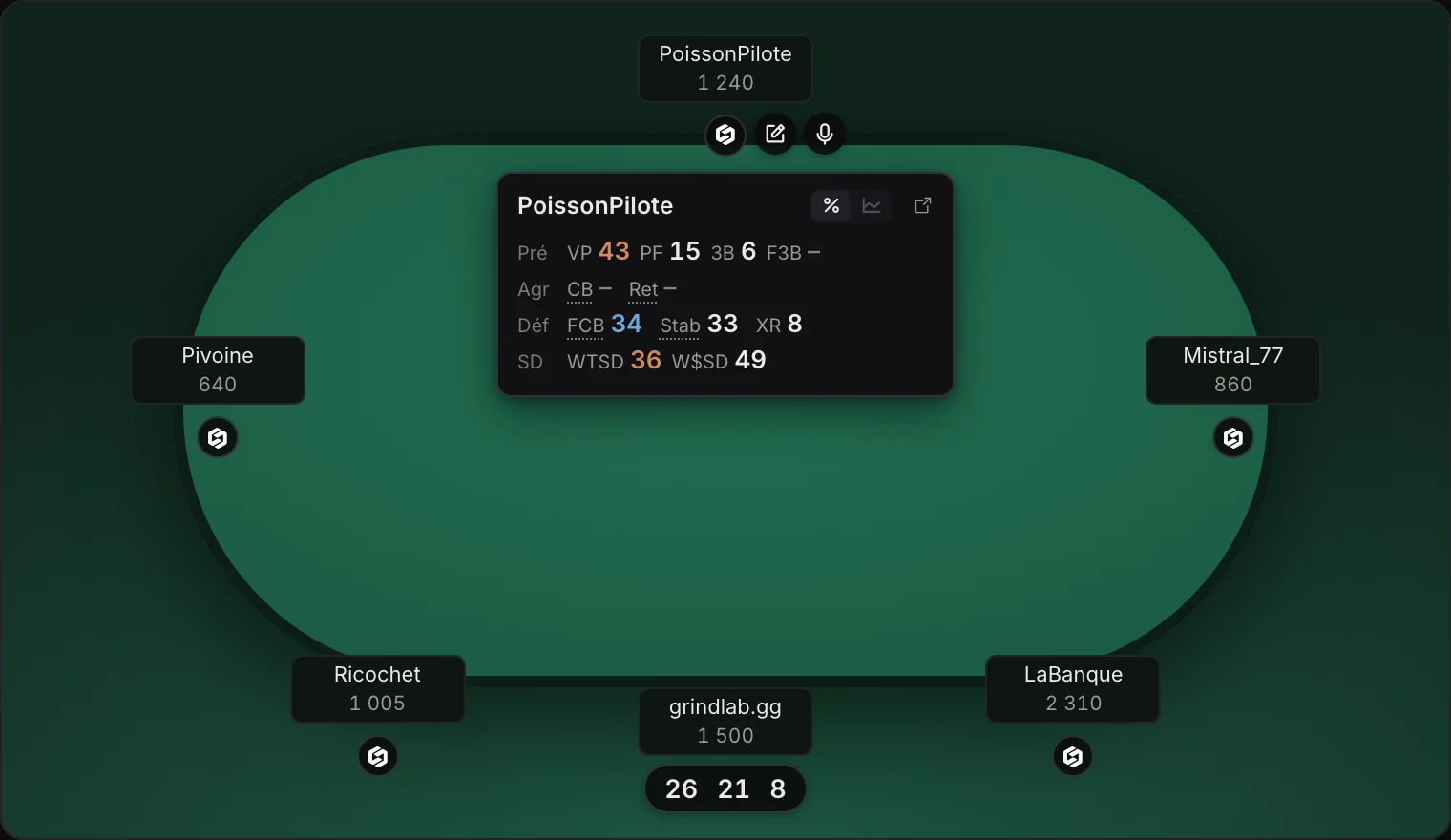
If you prefer a clear table, switch to Logo (HUD page › Display, or in the edge tab). Each plate becomes a small logo. Hover it and the player's card opens straight away, with the pencil and the microphone next to the logo.
Small tables, under 600 pixels wide, switch to logos by themselves. Enlarged again, they go back to plates.
The quick card
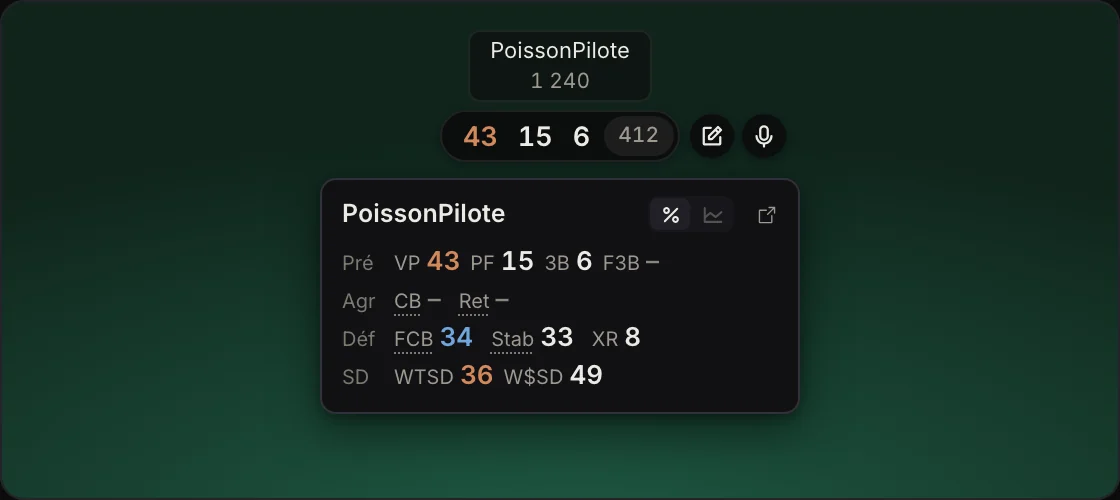
Rest the mouse on a plate for a moment and its quick card opens below it. It closes when the mouse moves away. To keep it open, click the plate.
The card lays out the player's stats by row: preflop, aggression, defence and showdown. Hover a number to see its full name. The same colour rules as on the plate apply.
At the top right:
- the chart shows their SharkScope tournament results. They only open after your session. In cash games, SharkScope has nothing to show;
- the arrow opens their full card in the Tracker (see Players).
What the plate and the card show is set on the HUD page, under “Plate”, separately for cash, tournaments and Spins.
Taking a note
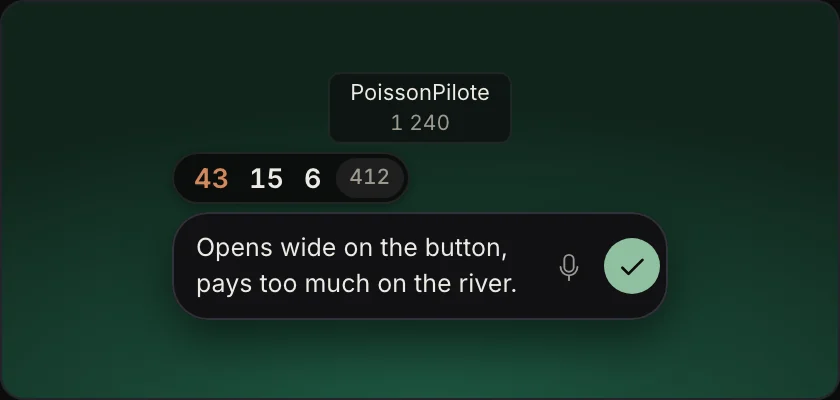
With the mouse on a plate, a pencil appears to its right. Click it and a typing line opens under the plate.
- Enter saves;
- ⇧ Enter starts a new line;
- Esc cancels.
The note is saved at once and the pencil shows on the plate. To read it later, click that pencil. The N key, with the mouse on a plate, opens the typing line too.
These are the same notes you find on the player's card, in the Tracker and in the Lab.
Dictating a note
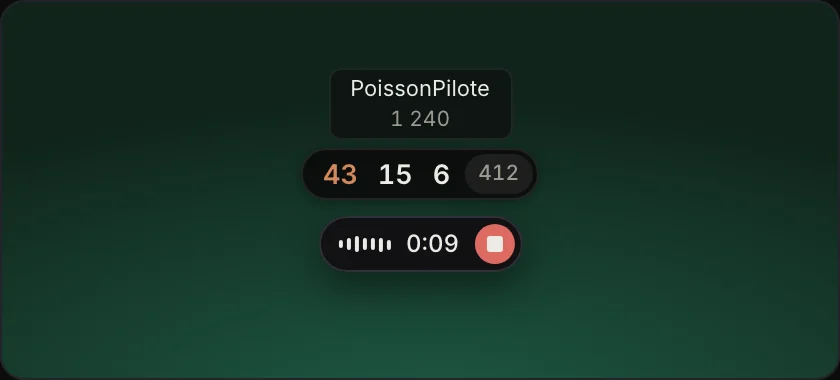
Next to the pencil, the microphone starts a dictation. A small module shows under the plate: the spectrum follows your voice and the timer runs. Click the square to finish. Dictation stops by itself after 30 seconds.
The transcribed text is added to the player's note. Your voice is sent for transcription, then deleted.
On the keyboard, the D key, with the mouse on a plate, does the same. On the HUD page, the dictation mode lets you choose between holding the key while you speak or pressing it once to start and once to finish. The first dictation asks for access to the microphone.
Marking a hand
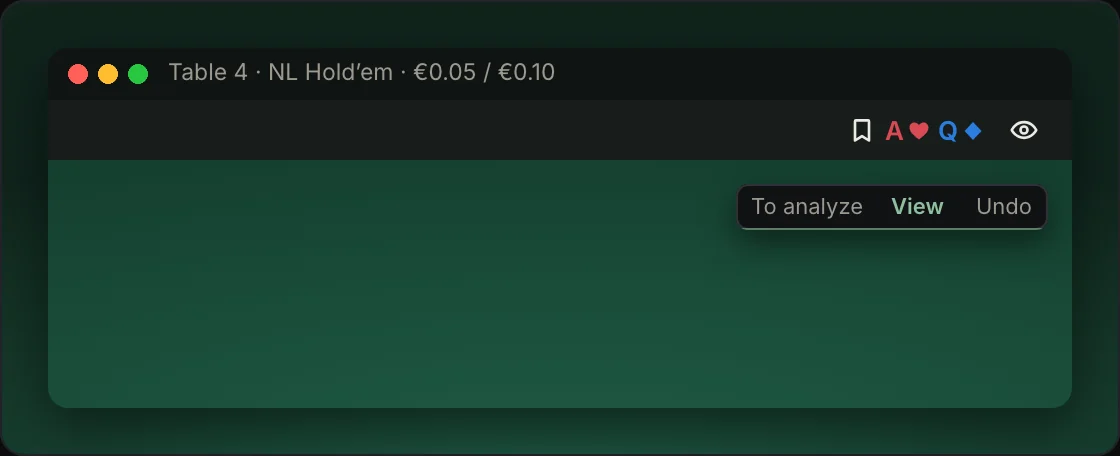
A spot left you unsure? At the top of the table, the bookmark marks the previous hand, the one that just ended. Its two cards show next to it, so you know which one you are marking.
One click is enough. The hand joins the “To analyze” view of My hands. A discreet confirmation shows for a few seconds: “View” opens it, “Undo” takes it back.
On the keyboard: ⌥ S on Mac, Ctrl + Alt + S on Windows, on the table in front.
Hiding the HUD on one table
Next to the bookmark, the eye hides the HUD on this table only. Your other tables keep theirs. Click again to bring it back.
Right-clicking a plate
Right-click an opponent's plate to open its menu:
- their profile: set it, change it or remove it. When GrindLab guesses a profile, it offers it; Enter confirms;
- Note, to write a note;
- Dictate a note;
- Open their card.
The edge tab
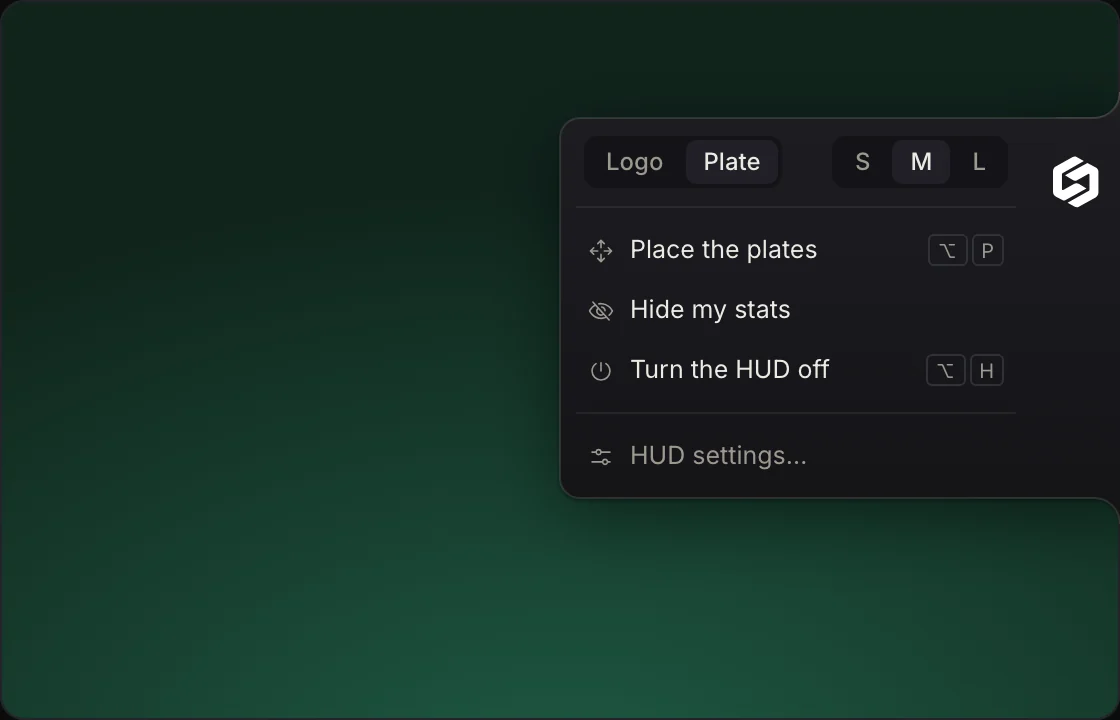
While you play, the HUD's menu sits in a tab against an edge of the screen. Drag it to move it to another edge. Click it to open its menu:
- Logo or Plate, and the plate size: S, M or L;
- Place the plates (⌥ P on Mac, Ctrl + Alt + P on Windows): drag each plate where you want it. With the magnet on, a plate dropped near its spot snaps back into it. Your layout applies to every table of the same size;
- Hide my stats: your plate disappears from all your tables;
- Turn the HUD off (⌥ H on Mac, Ctrl + Alt + H on Windows): nothing left on your tables. The same shortcut turns it back on;
- HUD settings… opens the Tracker's HUD page.
If you hide the tab, this menu stays in the menu bar on Mac and in the notification area on Windows.
Shortcuts
| Action | Mac | Windows |
|---|---|---|
| Mark the previous hand | ⌥ S | Ctrl + Alt + S |
| Note the player under the mouse | N | N |
| Dictate a note on the player under the mouse | D | D |
| Place the plates | ⌥ P | Ctrl + Alt + P |
| Turn the HUD off or on | ⌥ H | Ctrl + Alt + H |
N and D only act with the mouse on a plate, so on their own they don't get in the way of typing in Winamax. The others need a modifier key, or they would also reach the room's chat. All of them can be changed on the HUD page, under “Shortcuts”.
The HUD page
The Tracker's HUD page holds every setting, by section:
- Display: logo or plate, size, transparency, your own plate, how a profile shows, stat names on the card, the break reminder and the edge tab;
- Plate: the plate's three numbers and what the card shows, for cash, tournaments and Spins, with a preview;
- Rooms: where the HUD is active;
- Placement: the layout of each table format, which you can reset to automatic;
- Shortcuts;
- Dictation and notes: turning dictation on, how it starts, and the pencil on the plate;
- Permissions: screen recording (macOS) and the microphone.
The break reminder shows a bubble at the top of your tables ten minutes before the time you chose, then on the hour. Nothing shows on your plate.