
Circles
Private or public groups where you share your hands, analyses and games to get reviews, and where you give your own.
A circle is a group of players: you share your hands there to get an opinion, and you give yours on other people's. A study group, a coaching team or friends at the same stakes: it is the same tool.
Circles sit in the “Community” section of the menu, one line per circle. A green dot flags new shares, a padlock a private circle.
Join a circle
On the Circles page, “Join a circle” opens two tabs: “Browse”, the directory of public circles, and “I have a code”, for the ten-character invite code (for example 7K2P9QXR4T). A code works for public and private circles alike.
The simplest route is the invite link (grindlab.gg/c/…): it signs you in if needed and opens the window with the code filled in.
Joining is free, on every plan. A circle holds at most 50 members; you can belong to ten circles.
Create a circle
“Create a circle” asks for:
- a logo (PNG, JPG or WebP, 1 MB maximum); otherwise, the circle's initials
- a name, from 3 to 40 characters
- a language: French, English or Spanish
- a visibility: Public (listed in the directory, open to all) or Private (invite only)
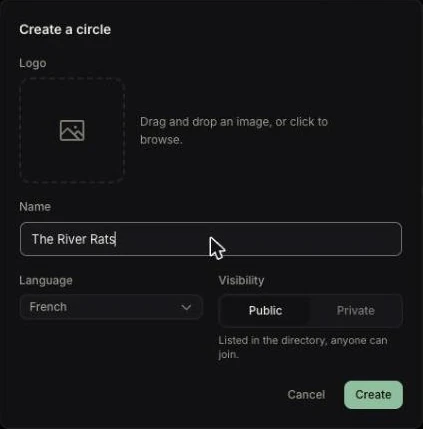
The circle's address comes from its name and never changes, even after a rename.
Founding a circle is a Grinder feature, up to five circles; on the Free plan, “Create a circle” opens the upgrade window. A circle survives its founder going back to the Free plan.
Invite and manage members
Only the founder invites people and configures the circle:
- “Invite”, at the top of the page, copies the invite link.
- “Settings”, “Invite link”: “Copy link” or “Regenerate”, which cuts off the old link at once (useful after removing someone from a private circle).
- Members tab: “Remove” excludes a member; their shares stay in the feed.
- The settings change name, logo, language and visibility, and let you delete the circle, members and shares included. This cannot be undone.
A member leaves with “Leave circle”; the founder deletes the circle instead.
The circle page
- Feed: the shares, with their author, their note and the avatars of those who reviewed. Search and filters by type (hands, selections, analyses, sessions, tournaments), by member (“My shares”, “Others”) and by review (“No review”, “Unread”).
- Activity: arrivals, shares and reviews.
- Leaderboard: over the “Last 30 days” or “All time”, by reviews given, then by shares.
- Members: the list, with each one's posts and reviews.
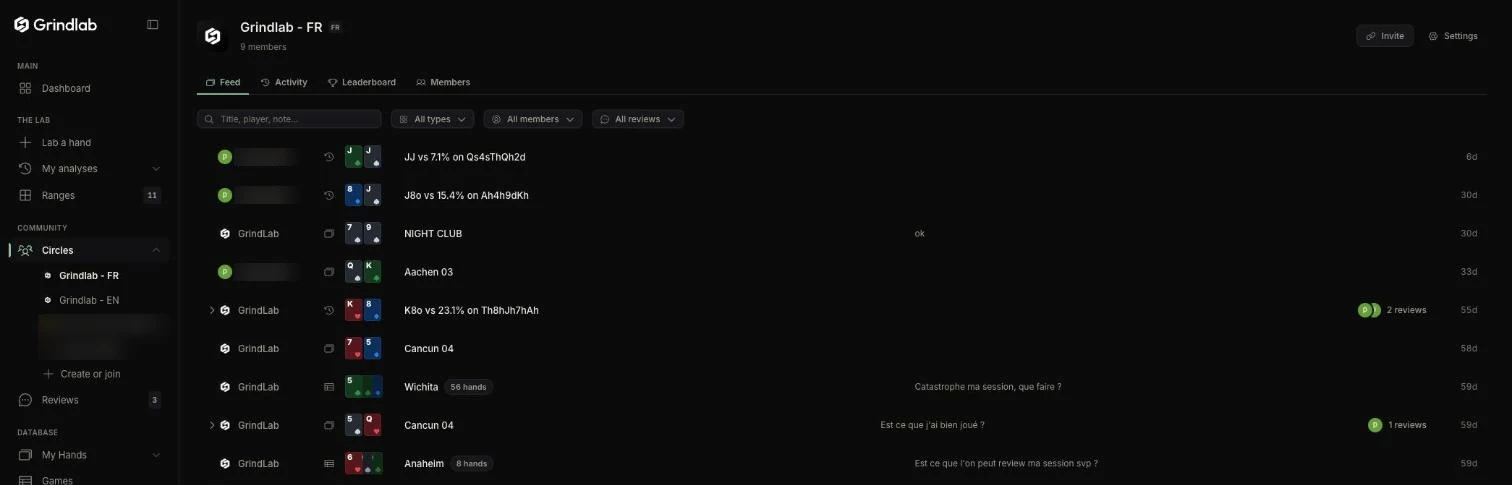
A feed item opens in a new tab; “Previous Review” and “Next Review” step through the circle's items.
Share to a circle
You can share a hand (its menu in My Hands, or the replayer), a selection of up to thirty hands (“Post to a cercle”), a Lab analysis (“Share” or My analyses) or a whole game (Games page).
“Share to a circle” opens a window: pick the circle and add an optional note (“Not sure about my river bet…”). Sharing the same item again only updates the note.
The item then carries the “Shared to circle” badge, which lets you remove it. The author and the founder can remove it; its reviews are then left without a subject.
Circle or public link?
The two can be combined:
| Public link | Circle share | |
|---|---|---|
| Who sees it | anyone with the link, no account | signed-in members |
| Where it shows | wherever you send the link | in the feed, with your note; green dot in the members' menu |
| To turn it off | “Stop sharing”, “Make private” or “Turn the public link off” | “Remove from Circle” |
Turning off a link removes nothing from a circle, and a circle share never creates a public link. In both cases, “Hide screen names” hides your opponents' names.
Relay the circle to Discord
The founder can relay activity into a Discord channel (“Settings”, “Discord” section):
- In Discord: channel settings, “Integrations”, “Webhooks”, “New webhook”, “Copy URL”.
- Paste it into “Webhook URL”, then “Connect”. “Test” sends a test message.
- Choose what gets sent: “Shares”, “Reviews” and “Hand content” (cards, board and note visible to the whole channel; off by default).
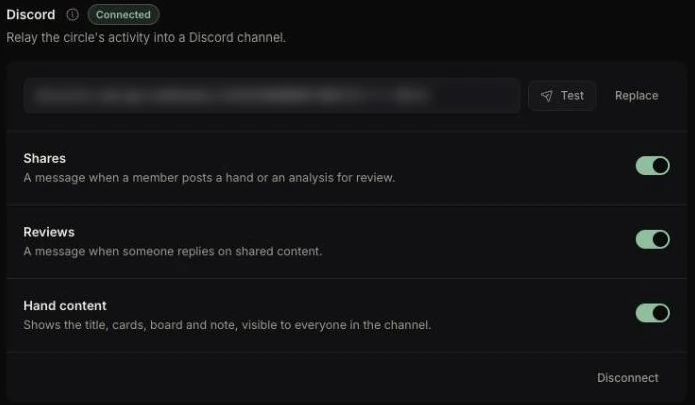
The text of reviews and private reviews are never relayed. If Discord rejects the messages, the relay shows “Stopped”: paste a new URL.
In the Tracker, and notifications
The Tracker menu lists your circles, and the dashboard's “Circles” card shows the most active ones; a click opens them in your browser. You share from the replayer (“Send to a circle”), Games and My Hands.
The bell flags reviews received and replies in your exchanges; circle activity comes through the green dot in the menu and, if set up, through Discord.